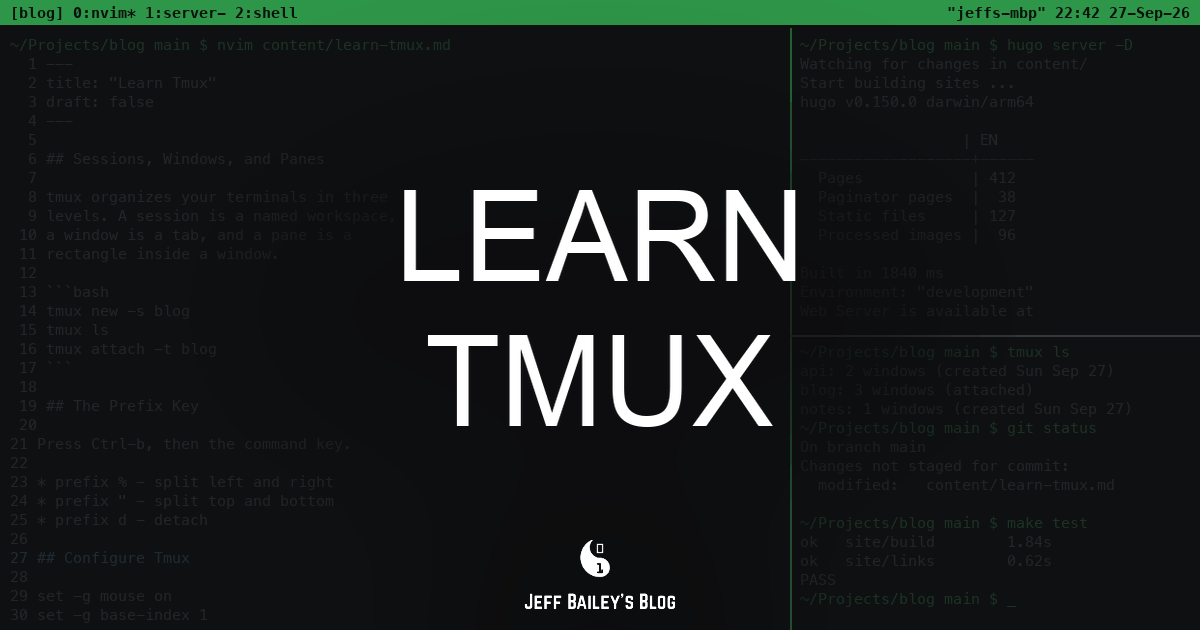
Wi-Fi drops during an SSH deploy, killing your shell, or six terminal tabs leave you unsure which runs the dev server. tmux keeps shells running, splits one terminal into many, and lets you return right where you left off.
This guide covers essential tmux basics—sessions, windows, panes, the prefix key, and a simple config—plus a searchable command reference and curated videos, podcasts, books, and online resources.
What You’ll Learn
- When to use tmux versus terminal tabs.
- How sessions, windows, and panes fit.
- How the prefix key works and makes every reference binding clear.
- Configure tmux with
.tmux.conf. - Add plugins and keep remote work running over SSH.
When to Use Tmux
tmux runs your shells in a background server, while terminal windows act as clients. Shells keep running after you close a window, lose your network, or log out, until you reattach.
What Tmux Does Well
- Keep long-running work alive on a remote server after your SSH connection drops.
- Split one terminal into panes for an editor, test runner, and logs.
- Group each project into a separate session and switch between them with a keystroke.
- Script a repeatable workspace layout with minimal configuration.
Where Tmux Is Not the Right Tool
- One shell on your laptop, where terminal tabs already work.
- Graphical programs (tmux multiplexes text terminals only).
- Long-running services managed by supervisors like systemd.
Install tmux via your package manager and verify the version; this guide supports tmux 3.x.
# macOS
brew install tmux

# Debian or Ubuntu
sudo apt install tmux

tmux -V                 # prints the version, such as tmux 3.5a
Sessions, Windows, and Panes
Tmux has three terminal levels. Learn their names, and the rest follows.
- A session is a named workspace, typically for one project, that persists after detaching.
- A window is a full-screen session tab listed in the bottom status bar.
- A pane is a rectangle within a window. Split the window into as many on-screen panes as fit.
(runs in the background)"] S --> A["Session: blog"] S --> B["Session: api"] A --> W1["Window 0: editor"] A --> W2["Window 1: server"] W1 --> P1["Pane: nvim"] W1 --> P2["Pane: tests"] W2 --> P3["Pane: hugo server"]
Start a named session, detach from it, and reattach:
tmux new -s blog        # start a session named blog
# ...press Ctrl-b, then d, to detach...
tmux ls                 # list sessions: blog is still running
tmux attach -t blog     # reattach to it
If tmux ls or tmux attach reports no server running on /tmp/tmux-501/default (or a similar path), no server is running; nothing is broken. Start one with tmux new -s name.
Within tmux, press Ctrl-b s to choose a session or run tmux switch -t name. Outside tmux, use tmux attach -t name instead.
The Prefix Key
Every tmux binding starts with the prefix key, Ctrl-b by default. Press and release it, then press the command key. prefix X means this sequence; for example, prefix c means Ctrl-b, release, then c.
The prefix keeps tmux from stealing keys from your shell and editor.
The bindings you’ll use every day:
prefix ccreates a window, andprefix nandprefix pmove to the next and previous one.prefix %splits the current pane left and right, side by side.prefix "splits the current pane top and bottom, one above the other.prefixfollowed by an arrow key moves to the pane in that direction.prefix ddetaches, leaving everything running.prefix ?lists every binding, when you forget one.
The split keys are easy to confuse: prefix % runs split-window -h, creating a vertical divider. Remember the result, not the flag.
Configure Tmux
At startup, tmux reads ~/.tmux.conf; version 3.1+ also checks ~/.config/tmux/tmux.conf. Each line is a command you can enter at the prefix : prompt.
A small starting configuration:
# Use Ctrl-a as the prefix instead of Ctrl-b
unbind C-b
set -g prefix C-a
bind C-a send-prefix

# Turn on the mouse: click panes, drag borders, scroll
set -g mouse on

# Number windows and panes from 1, to match the keyboard
set -g base-index 1
setw -g pane-base-index 1

# Reload this file with prefix r
bind r source-file ~/.tmux.conf \; display "Config reloaded"
Changes don’t apply to a running server until you reload. Run tmux source-file ~/.tmux.conf, or press prefix r once the binding above is in place.
A second file can build your workspace. new-session -d creates a session in the background, and -c sets its starting directory. Keep these lines out of ~/.tmux.conf: every prefix r would run them again and fail with duplicate session: blog.
# ~/.tmux/workspace.conf: named sessions, each starting in its project directory
new-session -d -s blog -n main -c ~/Projects/blog
new-session -d -s api -n main -c ~/Projects/api
Load it once with tmux start-server \; source-file ~/.tmux/workspace.conf, then tmux attach -t blog drops you into a ready workspace. For a single session, tmux new -A -s blog attaches when the session exists and creates it when it doesn’t.
Practice Tmux
Practice key bindings in a real tmux 3.7c terminal. It opens to a shell; start tmux as usual. Nothing downloads until you press Start, and your typing stays in your browser. Reset restores a fresh shell. Click the terminal to type; press Tab to leave.
Practice the commands on this page in real tmux, right here. Nothing downloads until Start (about 4.5 MB).
reader@practice:~$
The practice terminal needs JavaScript. Every command in the reference also works in tmux on your own machine.
Run this five-minute drill in the practice terminal or your own.
- Run
tmux new -s practiceto start a session namedpractice. - Press
prefix %to split left and right, thenprefix "to split the right pane top and bottom. - Press
prefixand an arrow key to move between the three panes, thenprefix zto zoom one andprefix zagain to restore it. - Press
prefix cto open a second window, thenprefix ,to name it. The prompt starts with the current name, so delete it with Backspace, type a new name, and press Enter. - Press
prefix dto detach, runtmux lsto see the session still running, thentmux attach -t practiceto come back. - Press
prefix [to enter copy mode, scroll up with the arrow keys, and pressqto leave. - Run
tmux kill-session -t practicewhen you’re done.
Command Reference
Search the reference to find a binding fast. Each prefix entry means press Ctrl-b, release it, then press the key.
Session Commands
- tmux - Start a new session with a numbered name
- tmux new -s name - Start a new session called name
- tmux new -A -s name - Attach to the session called name, or create it when it doesn’t exist
- tmux ls - List all sessions
- tmux attach -t name - Attach to the session called name from outside tmux
- tmux switch -t name - Switch to the session called name; run it from inside tmux, because outside tmux there is no client to switch
- tmux kill-session -t name - Close the session called name and every window in it
- prefix d - Detach from the session and leave it running
- prefix $ - Rename the current session
- prefix s - Choose a session from an interactive list
Window Commands
- prefix c - Create a new window
- prefix n - Move to the next window
- prefix p - Move to the previous window
- prefix w - Choose a window from an interactive list
- prefix , - Rename the current window
- prefix & - Close the current window (tmux asks to confirm)
- prefix 0-9 - Move to the window with that number
Pane Commands
- prefix % - Split the current pane left and right, side by side
- prefix “ - Split the current pane top and bottom, one above the other
- prefix o - Move to the next pane
- prefix arrow key - Move to the pane in the direction of the arrow
- prefix q - Show pane numbers; press a number while they show to jump to that pane
- prefix x - Close the current pane (tmux asks to confirm)
- prefix z - Zoom the current pane to fill the window, or restore it
Copy Mode Commands
In copy mode, press Ctrl-Space, select text, then press Alt-w to copy. With vi or vim as your EDITOR, press Space to start and Enter to copy.
- prefix [ - Enter copy mode to scroll back through output and select text; press q to leave
- prefix ] - Paste the most recently copied text
Help and Command Prompt
- prefix ? - List every key binding
- prefix : - Open the tmux command prompt to run commands such as kill-session
- prefix t - Show a large clock in the current pane
Plugins and Networking
tmux lacks a built-in plugin system. Tmux Plugin Manager (TPM) fills the gap: clone it once, list plugins in your configuration, and let it fetch them.
git clone https://github.com/tmux-plugins/tpm ~/.tmux/plugins/tpmAdd the plugins to the end of ~/.tmux.conf, followed by the line that starts TPM:
set -g @plugin 'tmux-plugins/tpm'
set -g @plugin 'tmux-plugins/tmux-sensible'
set -g @plugin 'tmux-plugins/tmux-resurrect'

run '~/.tmux/plugins/tpm/tpm'
Reload the configuration, then press prefix I (capital i) to install the plugins. tmux-sensible provides popular defaults, while tmux-resurrect saves and restores sessions after reboot. Plugin installation requires an internet connection to download from GitHub.
tmux helps most over ssh. Run tmux on the remote machine, not your laptop, so the shells live on the server:
ssh deploy@example.com
tmux new -A -s work
When the connection drops, the session continues running on the server. Reconnect via ssh and run tmux new -A -s work again to resume where you left off. If ssh refuses your key, fix your ssh key permissions first.
When running tmux locally and on a server, the outer session intercepts the prefix. Press it twice (Ctrl-b Ctrl-b) to pass it to the inner session, or assign different prefixes.
Troubleshooting
- No server running.
tmux lsortmux attachanswersno server running on /tmp/tmux-501/default. No session exists yet, so start one withtmux new -s name. - Sessions should be nested with care. Running
tmuxinside tmux answerssessions should be nested with care, unset $TMUX to force. Switch sessions withprefix sortmux switch -t nameinstead of starting a new one. - Duplicate session.
tmux new -s nameanswersduplicate session: namewhen that session already exists. Runtmux attach -t name, or usetmux new -A -s nameto attach or create in one step. - Config changes do nothing. The running server still has the old configuration. Run
tmux source-file ~/.tmux.conf, or pressprefix ronce you’ve bound it. - Colors look wrong inside tmux. Add
set -g default-terminal "tmux-256color"to~/.tmux.conf, reload it, and open a new window. Panes that already exist keep the old setting.
Learn Tmux: Beyond the Basics
Use these resources to go further: watch a video, then keep a book or the wiki open as you customize.
Video
- Dreams of Code’s tmux introduction, a fast tour of sessions, panes, and a practical configuration.
- Tmux will SKYROCKET your productivity by typecraft, a hands-on walkthrough of a daily tmux setup.
- You need to learn tmux RIGHT NOW by NetworkChuck, a beginner-friendly introduction with ssh in mind.
- Complete tmux Tutorial by HackerSploit, a longer, methodical tour of the commands.
Audio and Podcasts
- Taming the Terminal, TTT 38: tmux, a Screen Alternative by Bart Busschots and Allison Sheridan, an audio introduction to sessions, windows, and panes.
- Syntax #1011: tmux and Terminal Maxxing with Ben Vinegar, a conversation about daily terminal workflows built around tmux.
Books
- tmux 3: Productive Mouse-Free Development by Brian P. Hogan, the standard book on tmux, from first session to scripted workspaces and pair programming.
- The Tao of tmux by Tony Narlock, a concise guide to the server, session, window, and pane model, also free to read online.
Online
- The tmux Getting Started guide, the official introduction on the tmux wiki.
- The tmux manual page, the complete reference for every command and option.
- Tmux Cheat Sheet, a printable quick reference.
- awesome-tmux, a curated list of tmux plugins, themes, and articles.
- Tmux Plugin Manager, the installer behind most tmux plugins.
Related Content
- Learn Neovim pairs with tmux: run Neovim in one pane and your tests in another.
- What Is tmux? explains the problem a terminal multiplexer solves.
- The step-by-step tmux tutorial walks through a first tmux session step by step.
- What Is fzf? covers the fuzzy finder that many tmux session pickers use.
Related Articles by Category
🎓 Learn X
Begin learning new software frameworks, languages, tools, and techniques then leave with resources for further study.
💻 Software Engineering
The art and science of creating software applications and systems.
- 1000 Life Giving Potions - Operating System Wildlife
- A List of Pragmatic Programmer Principles
- A List of Software Engineering Blogs: Tech Company Engineering Blogs
- A Software Fundamentals Glossary
- Are We There Yet Development
- Fundamental Algorithmic Patterns
- Fundamental Data Structures
- Fundamental Skills
- All 85 in Software Engineering →
Comments #